
Helpful Tools for Students to Study Smarter and Save Time
Students deal with more than books and notes. Time has changed, and unlike previous times when every piece of information was in a book, now a lecture note might be stuck in a photo or an online class might suffer from a slow internet connection.
Fortunately, SAAS based tech has also made advancements. Several online tools are available on the internet that make these everyday tasks easier. Instead of installing a separate app for every problem, students can use simple online utilities to extract text, convert documents, check their internet connection, and access digital resources quickly.
In this article, we'll look at four tools and how they can fit into a student's daily study routine. Keep reading till the end, as we have discussed each tool with attention to detail.
Turn Scanned Notes and Images Into Editable Text With OCR Online
Students often come across notes and pages that have useful text. The problem is that the text inside the pages or images cannot be edited directly. Typing everything can be time-consuming, especially when you are handling a lot of information.
This is where Optical Character Recognition (OCR) helps. OCR technology is specifically designed to understand the text in images and documents. It easily converts the text into editable text, which makes it easier to copy and reuse for educational purposes.
Even though the technology is used widely in the market and there are a lot of online tools, choosing the right one can be a mammoth task. Here is the good news: you do not have to worry, as I have done complete research to find the right tool. To extract text from images, I would say OCRonline.io is a great tool. The tool is easy to use, has a batch processing option, and is free as well.
It can help students extract text from images and PDF files without having to type the content themselves. This can be particularly helpful when digitizing lecture notes, textbook pages, or other study material.
To help you understand better, I have shared the steps involved in the process, followed by a pictorial reference of the tool’s output.
The steps are:
- Open the OCR Online tool.
- Upload or drag and drop your document/image/PDF.
- Crop the image (optional).
- Click “Convert”.
- Review the extracted text.
- Copy or download the result.
To show you the tool’s output, I have uploaded handwritten notes on the tool; the output is attached below.
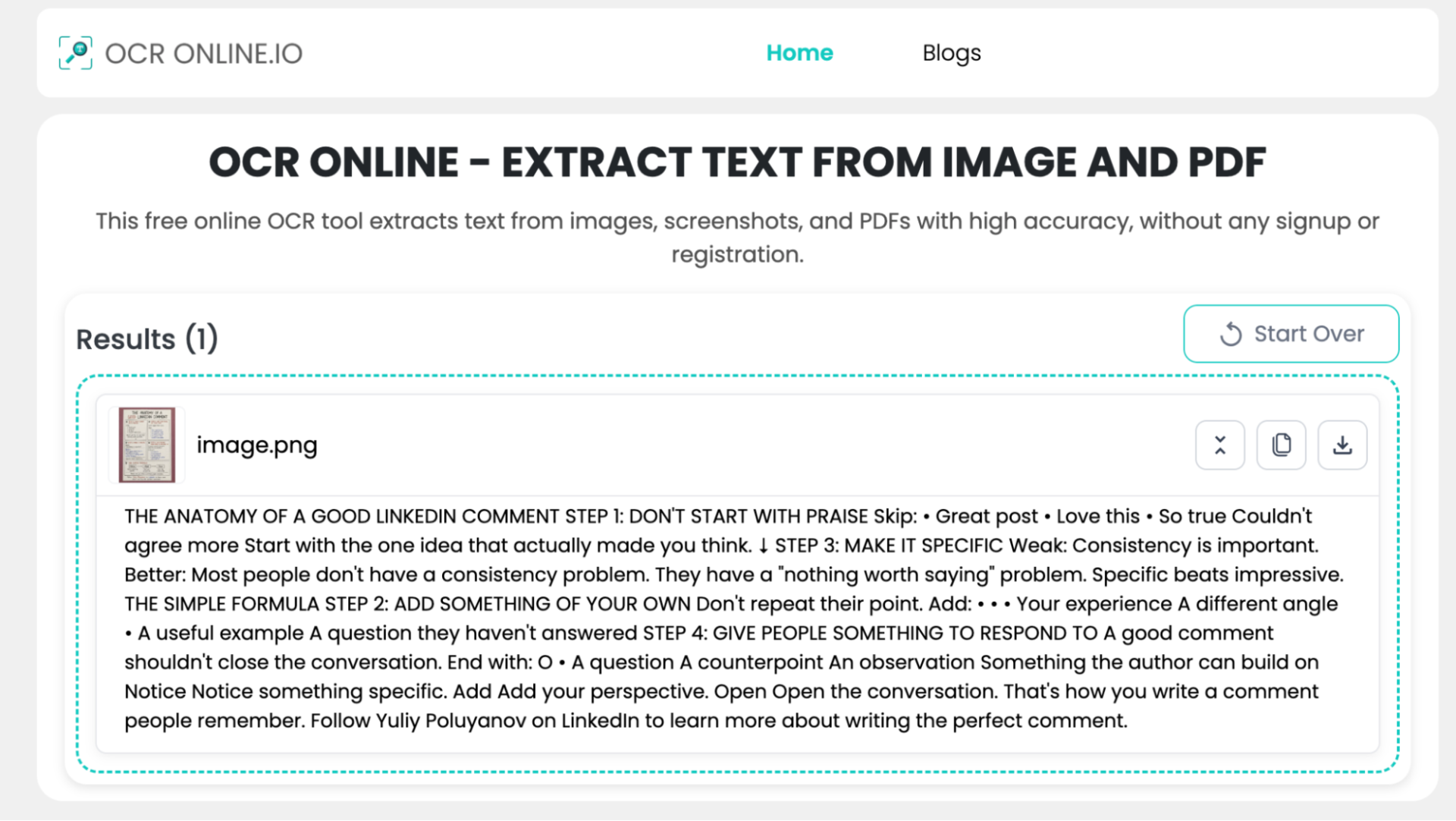
The tool has done a pretty good job. It has efficiently extracted all the text from the notes. Even though the notes had some content in tiny words, the tool managed to extract that too with its great OCR capabilities. Also, it has ensured that no text is left behind and whatever is being extracted is complete.
However, to ensure contextual accuracy, it is best to manually review the output to check if it’s all good to be reused for educational purposes.
Convert JPG Notes and Images Into Editable Word Documents
Apart from extracting text from images, students often receive notes that are in JPG formats, which sometimes they have to edit or take help from. Viewing JPG files is easy; however, editing them can be a difficult task.
A JPG to Word converter can make this process easier by using OCR technology to extract the text from an image and place it into an editable Word document. This means students can make changes, organize their notes, or add additional information without typing everything from scratch. Like the previous tool, I have done the complete research to find the right tool, so the process is quick and easy.
JPG to Word is a good tool for this purpose. I have tested the tool with my brother’s assignment JPG files, and the output was clean and quick. Since students will be using the tool, ensure that none of their data is sold or used for any secondary purposes. It ensures that your data is safe.
I can understand that if you are using such a tool for the first time, it can be a little overwhelming, so I have shared the steps and output of the tool below for your viewing.
The steps are:
- Open the JPG to Word converter.
- Upload your JPG image.
- Crop or rotate the image if necessary.
- Start the conversion.
- Download the resulting Word document.
- Compare the converted document with the original image.
To show you the tool’s output, I have uploaded a JPG quote of a textbook into the tool, and the tool instantly converted the image into a Word file. The results are shown below.
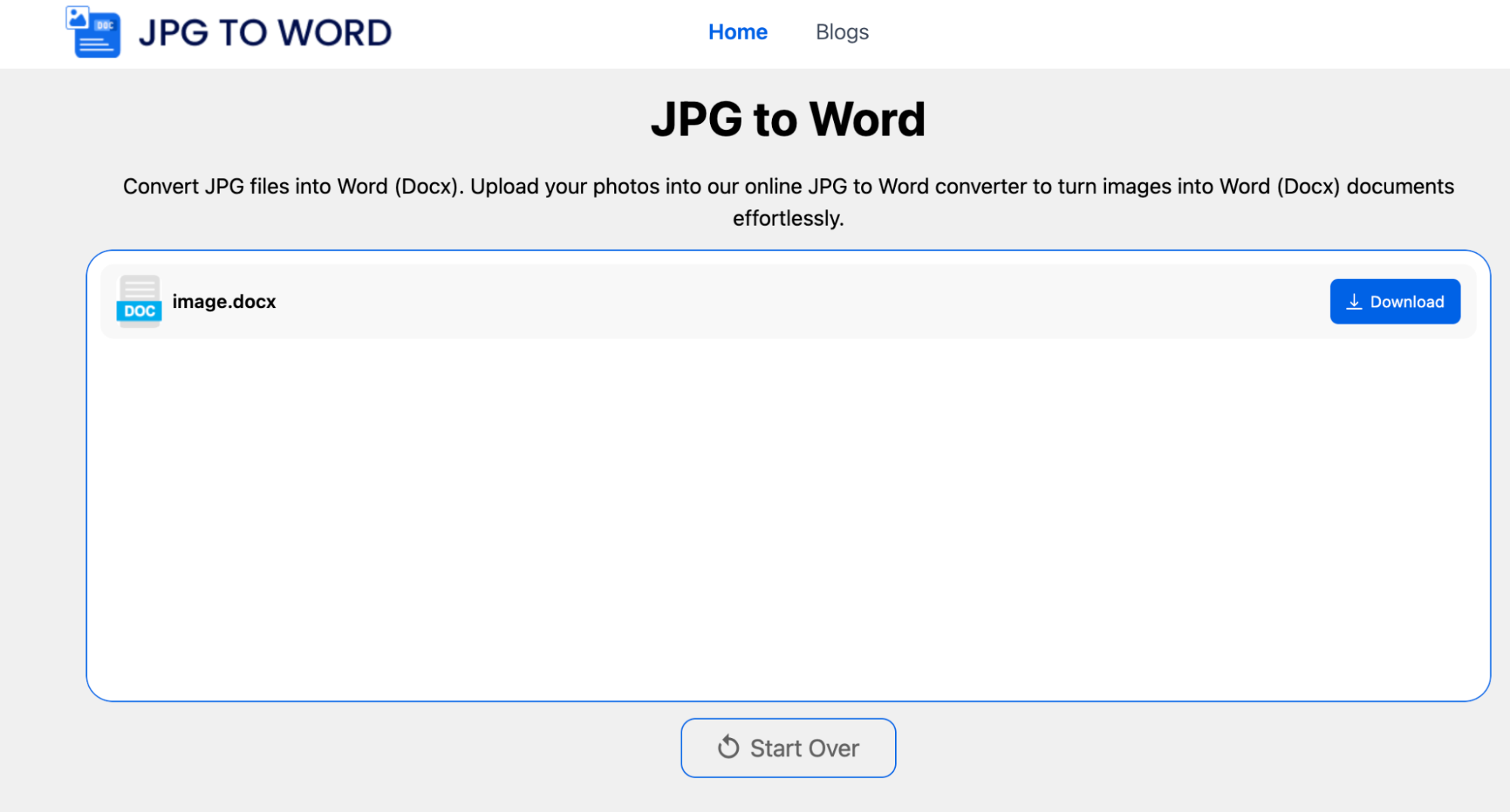
As you can see in the image, the tool has done a clean job. Before downloading the file, review it once to ensure contextual relevance and formatting. However, if you feel like the output is not up to the mark, you may revise the process to get better results.
Check Your Internet Before an Online Class With a WiFi Speed Test
While the conversion and editing of files can be dealt with the tools discussed in the previous sections. However, for students who take online classes, having a stable internet connection is the most important thing. When the connection becomes slow, it can be tedious to know whether the problem is with your internet provider, signal, or the device itself.
In situations like these, running a Wi-Fi test can be very helpful. Instead of guessing why a webpage is taking too long to load, or an online lecture keeps buffering, you can check how your connection is performing at that moment.
To save you time, I spent some hours finding a tool worth using and recommending, which is wifispeed.io. This tool checks several aspects of your connection. It includes download and upload speed, jitter, and ping or latency. The tool is quick, and the results are very precise.
Using this tool is very simple; just land on the website, click GO, and within seconds, the tool provides great results. I have attached a result of the tool’s work below.

The tool has provided a detailed output of the internet connection. This would help students to see where the problem is and what their next step should be. However, if you feel like the results have a big difference from what you expected, feel free to revise the output for better results.
Access Study Resources Quickly With a QR Code Scanner
Educational environments have evolved, and now QR codes are common in classrooms, textbooks, and presentations. Instead of downloading a dedicated app and giving it storage on your device.
Thanks to the recent developments in tech, online QR code scanners have emerged and are readily available on the internet. A QR code scanner can be particularly useful when the code is saved as an image or screenshot, and you cannot scan it directly with your phone's camera. One of the tools that caught my attention during the testing and shortlisting process was qr-code-scanner.io. The tool was free, easy to use, and the results were also exceptional. It also has a beep sound that tells you when the scanned items are ready to be viewed.
The steps are shared below:
- Open the QR code scanner.
- Upload the QR code image.
- Let the tool recognize the code.
- Review the information or URL it provides.
- Open the destination if you trust it.
I have uploaded a QR code that had a link in it. The results are shared below.
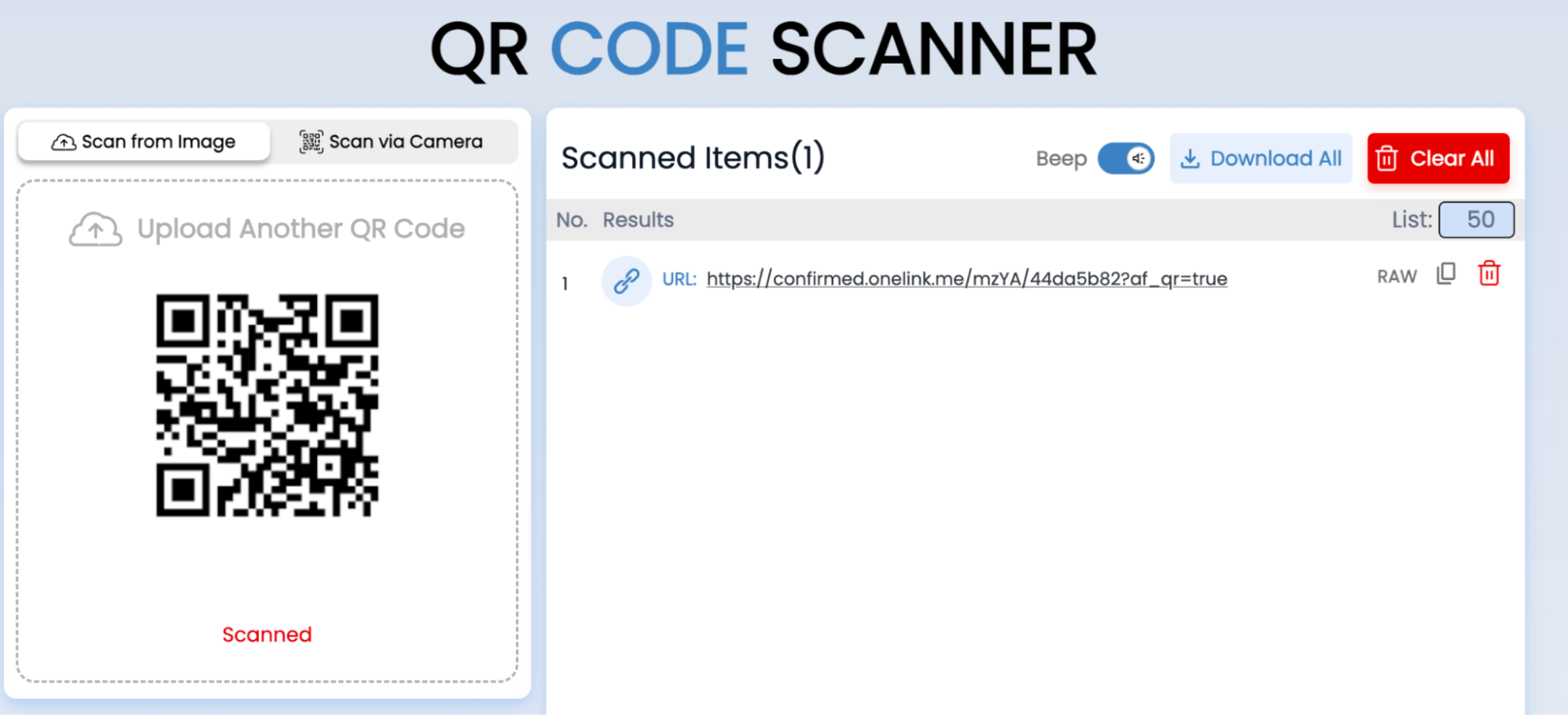
The tool did a great job. It instantly recognized the information and shared the scanned items. However, if you feel like it is a suspicious link, you may revise the process or take an appropriate step.
Things Students Should Keep in Mind When Using Online Tools
There is no doubt that online tools have made learning easier. However, students should never blindly trust any AI or online tool. They should always use them carefully. A few precautions can help you avoid inaccurate results or that they might face privacy issues.
Don't Assume Every Result Is Perfect
OCR and file conversion tools can occasionally misread files, characters, or handwriting. Similarly, translated content may not always capture the exact meaning of the original text. It is always a good option to compare the information with the original source before using it in an assignment or other academic work.
Protect Your Study Material
This is an important one. Students should always avoid submitting documents on online platforms that contain their sensitive information unless they are comfortable with the service. Checking the tool's privacy policy can help you understand how uploaded files and information may be handled.
Use These Tools to Support Learning
These tools are most useful when they remove repetitive tasks and give you more time to study. However, converting notes into text or accessing information quickly does not replace actually understanding the material. Use online tools as study aids, while still reviewing, verifying, and learning the information yourself.
Conclusion
Simple online tools can make everyday study tasks faster and easier. From extracting text and converting notes to checking internet speed and scanning QR codes, these tools can save students valuable time.
However, always review the results, protect your personal information, and use these tools to support learning, not replace it.