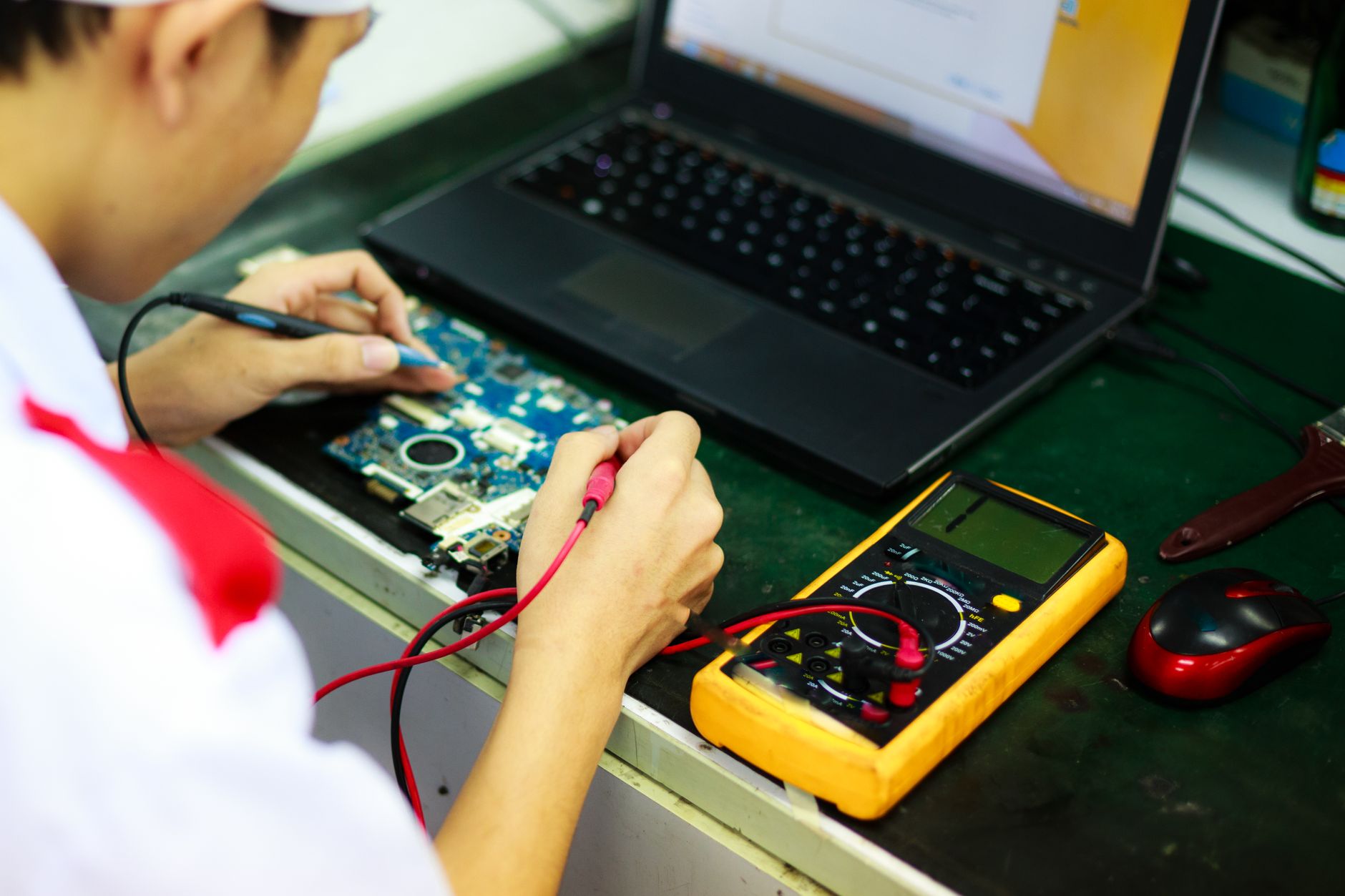
Independent computer diagnosis is a crucial skill for a diverse range of PC users, from freelancers and gamers to modders and enthusiasts. We'll guide you on when to perform it, what issues to look for, and the sequence for a comprehensive check.
Categories of PC Malfunctions
Computer malfunctions typically fall into two categories: hardware and software. Hardware issues involve your machine's physical components and are often easier to identify. PC diagnostics are commonly carried out in the following scenarios:
- The computer fails to start when the power button is pressed.
- Unusual sounds emanate from the system unit.
- The computer powers on and off rapidly.
- The operating system fails to launch.
- No display appears on the monitor.
- Network and internet connections are not established.
- Peripheral devices are unresponsive.
Full-Scope Diagnostics: Unraveling Software Quirks
A comprehensive computer diagnosis is also essential for addressing software-related issues, which manifest as:
- The computer experiences sluggish performance.
- Certain programs refuse to launch.
- Error messages pop up during heavy workloads.
- Unintended PC reboots occur.
- Games run at a crawl, with only minimal graphics settings available.
Signs It's Time to Diagnose
If you observe any deviations from your computer's usual behavior, it's a cue to initiate diagnostics and identify faults to restore normalcy. Let's dive into the process.
Mastering In-House PC Diagnosis: A Detailed Guide
Testing the Processor
To diagnose your computer's central processing unit (CPU), you'll need a stress-testing program. A stellar example is AIDA64, as mentioned earlier. Launch the program, navigate to the "Service" section, and select "System Stability Test." If you're specifically interested in the processor, opt for CPU only. For a comprehensive check, leave all checkboxes selected.
The test takes a few minutes, during which it's advisable to stay close and monitor the indicators. Ideally, the CPU temperature for a desktop should not exceed 55-60°C and for a laptop, 75°C. Normal results entail a lack of errors and significant performance dips.
If the temperature surpasses the critical threshold, causing an automatic shutdown, the culprit is likely the cooling system. If the processor produces errors or significantly loses power under stress, it's prudent to rerun the test. If the results persist, the issues may lie within the CPU.
Testing the Graphics Card
PhysX FluidMark is an excellent program for testing the graphical adapter. It assesses both rendering of three-dimensional models and their physics interactions. The operational scheme aligns with AIDA64. Launch the program and choose one of the three tests — HD 720, Full HD, or user-defined settings. While diagnosing, monitor the graphics card temperature, ideally not exceeding 50-60°C for desktops and 70-75°C for laptops. After the test, the program provides a performance report and identifies any errors.
Testing the RAM
For diagnosing computer memory, the program memtest86+ is highly effective. Its usage is a bit more intricate. You'll need to create a bootable image and install it on a USB flash drive. To ensure proper testing, you'll have to adjust the boot order in the BIOS.
If done correctly, the PC will initiate memory testing automatically upon startup. The process takes up to 15 minutes. Be wary of abrupt halts in diagnostics and error messages on a red background. In such cases, you may need to replace RAM modules or address issues with poor contacts.
Testing the Motherboard
In theory, you can diagnose the motherboard in AIDA64 or Speccy. During stress tests, monitor sensor readings for the Southbridge temperature and power system. The norm is up to 60-70°C and 30-45°C, respectively.
Specialized programs like MotherBoard Monitor also exist for motherboard testing. This utility compiles detailed reports, making them comprehensible to the average PC user.
Testing Storage Drives
Many manufacturers, including Seagate, Transcend, and Western Digital, offer various programs for PC system testing. However, they may not suit all users. Hence, we recommend testing your hard drive or SSD with the free program HDDScan. If there are bad blocks or errors on the disk, it will detect them. Professional assistance is recommended for drive recovery.
As mentioned earlier, CrystalDiskMark is a program you can use to assess your computer's performance. It reveals the actual speed of data read and write. Deviations of more than 10-15% from the declared values indicate a malfunction.
Testing the Power Supply Unit (PSU)
For diagnosing computer malfunctions, AIDA64 Extreme can be used to stress-test the system under load. Select the relevant stress options and press Start. Run the test for approximately an hour as an initial check. If the PC restarts or freezes, this may indicate an unstable power supply, although overheating, RAM, and motherboard issues should also be ruled out. If a laptop power adapter requires replacement, specialist catalogs such as https://zeto.ua/, https://www.microcenter.com/ help narrow the options by exact model or part number, output voltage, wattage, and connector type; the laptop brand alone is not enough.
Hardware Testing for the Monitor
A crucial aspect of independent computer diagnosis is checking the display. The PassMark (https://www.passmark.com/) Monitor Test program is suitable for this task. Initially, it conducts various tests to determine matrix type, response speed, color depth, acceptable refresh rate, and other parameters. Subsequently, it displays a series of images on the screen, aiding in detecting common defects like dead pixels, color banding, vertical stripes, and more.
Expert Tips: Essential PC Diagnostic Programs
1. Assessing Hardware Health with Precision
After an external check yields no issues, it's premature to declare the hardware fully operational. Rigorous performance testing is imperative, and for this task, specialized utilities are indispensable. If you're personally scrutinizing your computer, not engaged in professional diagnostics and repair, consider these recommended Windows programs:
2. CPU-Z: Unveiling Hardware Essence
CPU-Z conducts a thorough examination of your PC's hardware, showcasing its characteristics and aiding in identifying potential connectivity lapses with specific components.
3. Speccy: Comprehensive Component Testing
Speccy empowers you to test various computer components, extending to temperature monitoring—an invaluable tool for DIY enthusiasts and casual users alike.
4. HWiNFO: Holistic Programmatic Diagnosis
HWiNFO stands out as an application for comprehensive software diagnostics, measuring crucial points in the power system, including voltage levels.
5. AIDA 64: Stress-Testing Precision
AIDA 64 executes stress tests that evaluate your PC's performance under specific load levels. Note that the program is conditionally free, with some features accessible only through subscription.
6. PassMark Performance Test: Benchmarking Excellence
This application serves as a benchmark tool, evaluating your computer's performance and facilitating comparisons with other machines. The program also falls under the category of being conditionally free.
7. CrystalDiskMark: Speedy Storage Evaluation
CrystalDiskMark, a free program, is your go-to for assessing the performance of storage drives. It illuminates data read and write speeds under specific conditions.
8. SpeedFan: Cooling System Insights
For diagnosing the cooling system, SpeedFan steps in. It aids in determining fan speeds and component temperatures, providing critical insights for effective system cooling management.
Whether you're an enthusiast or a casual user, these programs cater to a spectrum of diagnostic needs, ensuring a comprehensive evaluation of your PC's health and performance.