I never realized how much time I spent managing files until my desktop became impossible to control. Every day I downloaded reports, saved screenshots, copied project folders, and created new documents. Instead of putting everything in the right place, I usually saved files on my desktop because it was the quickest option.
After a few months, the situation became frustrating. My desktop looked messy during screen-sharing sessions. I sometimes downloaded the same file twice because I could not remember where I had saved the original.
I wanted a solution that could simplify file management without forcing me to completely change the way I work. That’s when I decided to try iTop Easy Desktop. After using it for several weeks, I noticed that finding, organizing, and managing files became much easier.
What Is iTop Easy Desktop?
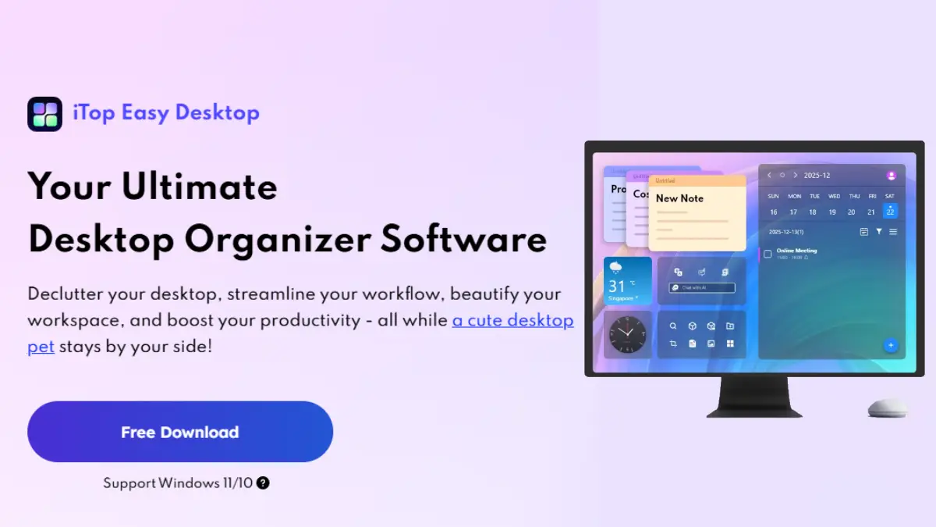
iTop Easy Desktop is a desktop organizer software for Windows that helps organize files, folders, and shortcuts in a cleaner way. Instead of leaving everything scattered across the desktop, it allows users to arrange items into organized desktop boxes while offering several extra tools that make everyday computer use easier.
Besides organizing files, it also includes desktop customization features, productivity tools, widgets, wallpapers, an AI assistant, and PawPal, the built-in virtual desktop pet.
The software is designed for students, office workers, remote employees, content creators, and anyone who wants a cleaner desktop without spending hours organizing files manually.
Features That Helped Me Manage Files Better
Here are some of the key features that I explored.
One-Click Desktop Organization
The first feature I tested was automatic desktop organization. With one click, the software grouped my scattered files into organized sections. I had a much cleaner workspace within seconds instead of manually dragging hundreds of icons across the screen.
It gave me a better starting point, and I only needed to make small adjustments afterward.
Desktop Boxes
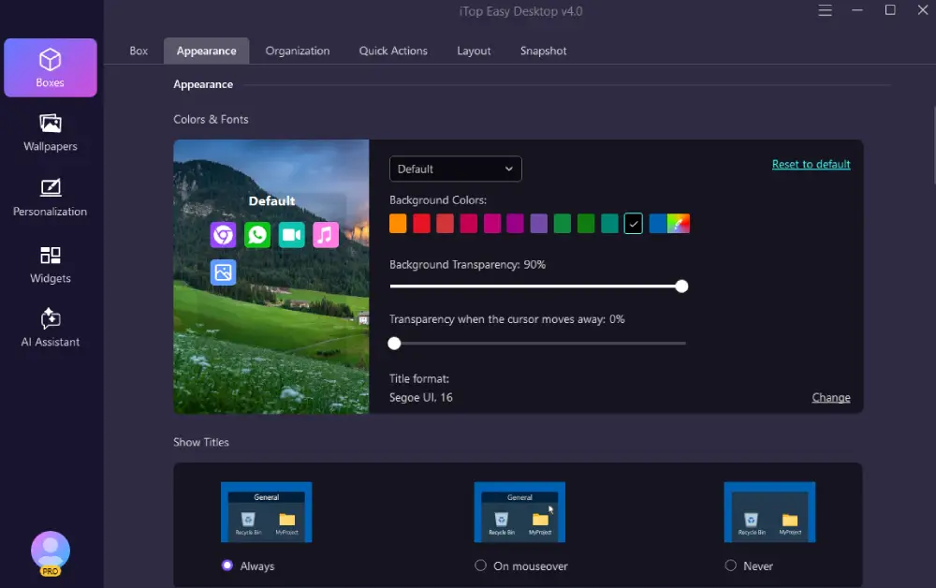
Desktop Boxes became the feature I relied on every day.
I created separate sections for work documents, invoices, downloads, screenshots, software shortcuts, and personal files. I always knew where each file belonged. As new files arrived, organizing them only took a few seconds.
Folder Portal and Quick Search
One of my biggest frustrations was opening multiple folders just to find one document.
Folder Portal allowed me to reach my most-used folders directly from the desktop. The built-in search feature also helped locate files much faster than browsing folders manually.
These two features alone saved me several minutes every day.
Private Box
Some documents contained personal information that I didn’t want sitting openly on my desktop.
Private Box gave me a password-protected location where I could safely keep those files while reducing desktop clutter at the same time. It also made sensitive files much easier to separate from every day work documents.
Double-Click Hide
Before online meetings, I often wanted a clean desktop without moving every file. Double-Click Hide instantly removed desktop icons from view. It gives me a neat background during presentations. After the meeting, everything returned exactly where I left it.
Desktop Customization and PawPal
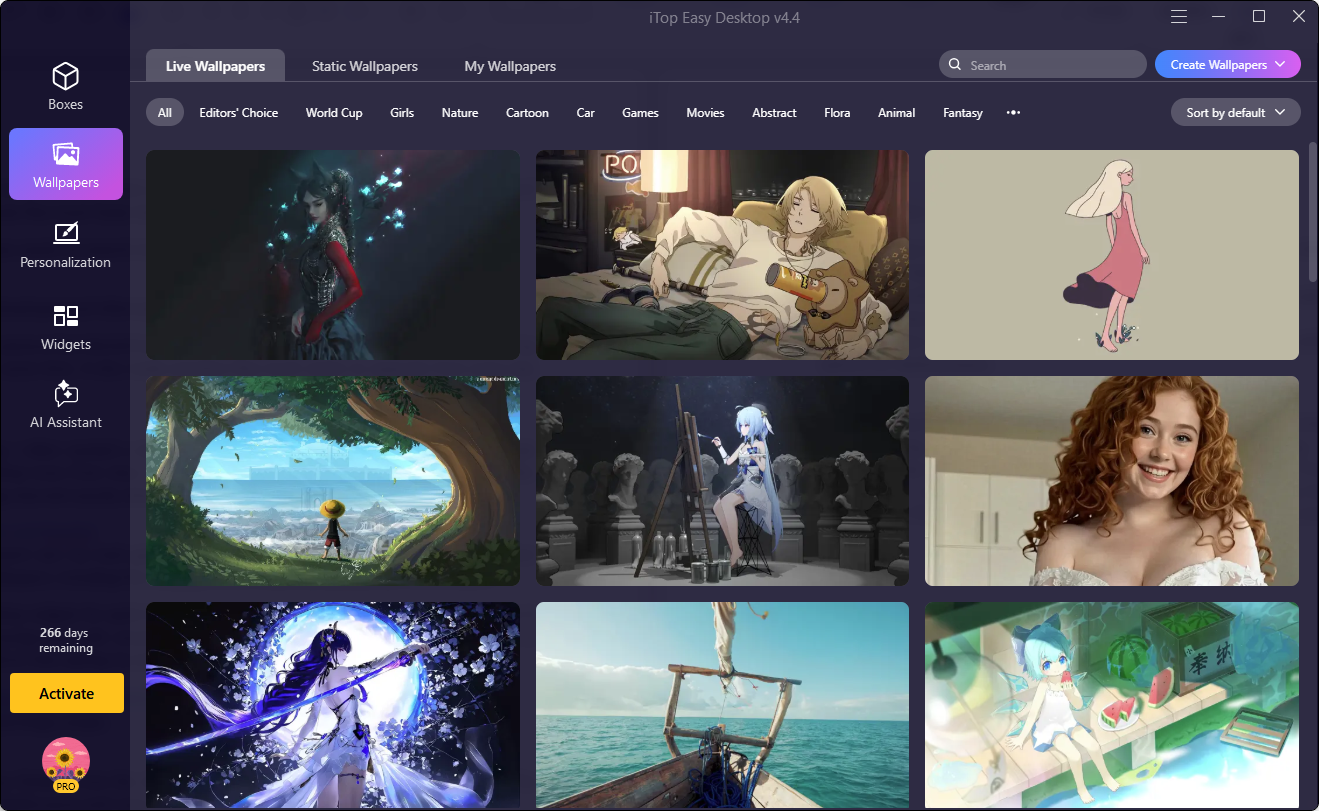
Although file management was my main goal, I also explored the customization tools. The software offers thousands of wallpapers, including live wallpapers that made my desktop feel more modern.
I also added a few desktop widgets for quick information and enabled PawPal, the virtual desktop pet. It quietly stayed in the background with smooth animations while using very little system resources. It added a fun touch without interrupting my work.
How I Started Using iTop Easy Desktop?
Getting started was surprisingly simple.
Download and Install
I downloaded iTop Easy Desktop from the official website and installed it in just a few minutes. The setup process was straightforward, and I was ready to organize my desktop immediately.
Organize Existing Files
I used the one-click organization feature to sort the large number of files already sitting on my desktop. Within moments, my workspace looked much cleaner than before.
Build My Own Categories
Next, I created desktop boxes based on the way I work. I separated active projects, completed work, downloads, screenshots, and software shortcuts. This made daily file management much more organized.
Finish the Setup
Finally, I enabled Auto Save Layouts, customized my wallpaper, added a few widgets, and turned on PawPal. These small changes made my desktop feel more organized while also making it enjoyable to use.
A Few Things I Didn’t Like
I found a few areas that could improve.
- If your desktop already contains hundreds of files, you may still spend a little time deciding how you want to organize them after the automatic cleanup.
- PawPal currently offers only a limited selection of characters, although more options are expected in future updates.
- Advanced users who enjoy making every detail unique may also want additional customization options for desktop boxes.
Final Thoughts
Before trying iTop Easy Desktop, file management was something I constantly postponed because it felt like a time-consuming chore. My desktop slowly became crowded, finding documents became frustrating, and staying organized required more effort than I wanted to spend. If you regularly struggle with messy desktops, misplaced documents, or too many scattered files, iTop Easy Desktop offers a simple way to make file management feel much less stressful while keeping everything within easy reach.