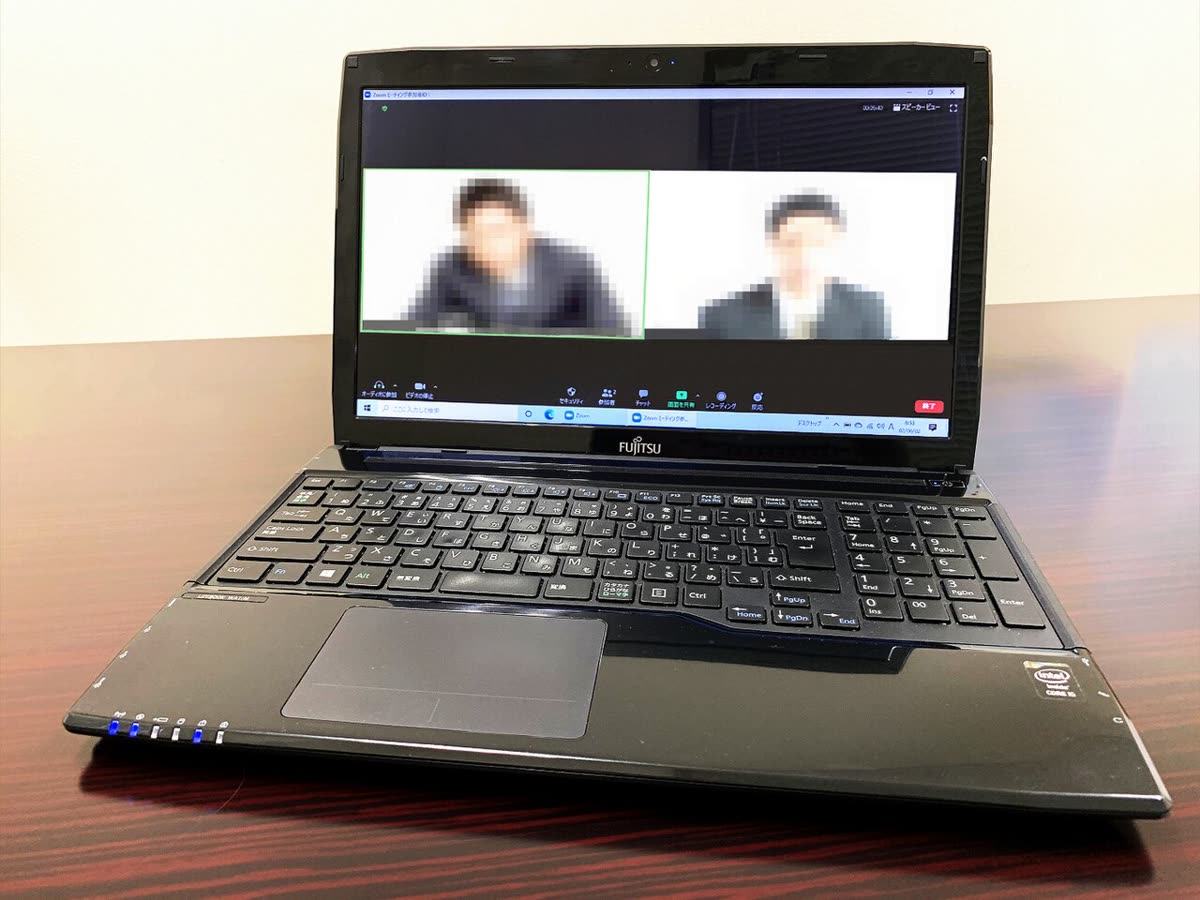
The slides took four days. The five-minute recording is what stalls, and plenty of students quietly turn to a live face swap so that someone calm, steady and well lit can sit in the corner of the video while they explain a routing table or a supply chain model.
The reason is usually not the material. By take six you know the content cold, but you are also watching a small preview window that shows your tired face, the bunk bed behind you and a charging cable you forgot to move. Half your attention goes to the argument, half to the mirror. The voice that comes out sounds flat, though over tea you explained the same diagram to a coursemate without a single stumble.
The Trouble With Voiceover-Only Slides
Switching the camera off and recording the screen with a voiceover is the usual escape route. It gets the assignment in on time, and it is also easy to spot. A lecturer marking twenty submissions in a row hears one level voice reading bullet points, with nothing to show where the emphasis falls.
A visible presenter fixes that without any extra effort. A pause before a formula, a nod when a graph confirms the hypothesis, a glance at the lens during the conclusion: viewers read these as punctuation, and on dense engineering or MBA topics they help people keep up.
A Different Face, a Calmer Take
LiveSwapFace needs a single reference photo. Open it in a browser, allow the camera, and the face on screen follows your blinks, your gaze, your head turns and your mouth as you speak. Nothing is installed and no graphics card is needed, because the processing happens in the cloud. Windows users can also install the desktop app, which adds a virtual camera that recording software can pick up.
What changes in practice is where your attention goes. Once the face on screen is not yours, there is nothing to critique at midnight before the portal closes, and your delivery stays natural because it is still your expressions driving it.
Sitting in a hoodie at a hostel desk is no obstacle either. Try-On puts a blazer or a collared shirt over you in the live picture, from the built-in presets or from a photo of your own shirt (JPEG, PNG or WebP, under 5 MB, shot flat against a plain background). Students presenting architecture portfolios or media studies projects sometimes switch on Restyle for a drawn, illustrated look. Keep the same reference photo in your course folder and every group update and lab walkthrough comes from the same recognisable host.
Hostel Lighting, Slide Corners and Laptop Fans
Most slide templates park the page number, the source line and the chart legend in the bottom right corner, which is exactly where a webcam box tends to land. Cover the legend and the lecturer cannot read the axis. A presenter window around 16% to 20% of the screen width, placed in a corner your slides leave empty, avoids the problem. You can also reserve a blank rectangle on the slide master before you start.
The tube light on a hostel ceiling throws shadows into the eye sockets and under the nose, which is the worst case for gaze and lip tracking. Sitting facing a window works well in daytime. After dark, a desk lamp bounced off the wall behind your monitor lights your face evenly from the front. If a bright window sits behind your chair, a curtain removes the silhouette.
Laptop fans are louder on the built-in microphone than most people expect when they lean towards the keyboard, so a cheap wired headset pays for itself. It also helps to pause for a full second before pressing the key for the next slide. That silence gives you a clean place to cut if you need to trim a stumble later.
Recording in OBS and a Ten-Second Sync Check
With the desktop app open, pick the reference photo (and a Try-On outfit if you want one), press Start, then click Send to virtual camera and leave the layout on AI output. In OBS Studio, build one scene from two sources: a Window Capture pointed at your presentation, and a Video Capture Device set to LiveSwapFace Camera. The face swap for OBS guide walks through adding the camera source and fixing the one setting that matters most for a spoken talk.
That setting is audio sync. Cloud rendering makes the picture arrive a fraction later than the sound from your microphone, so lips can look slightly behind the words. Open Advanced Audio Properties in OBS and add a small sync offset to the microphone track. Then record ten seconds of yourself reading two technical sentences and watch it back. The sounds that close the lips, such as p, b and m, are the easiest to check. When they land on closed lips, record the real talk.
The same LiveSwapFace Camera also shows up in desktop video-call apps, so a live study group session uses the identical setup.
Where It Fits in a Semester
Recorded, asynchronous work suits it best: a Python script walkthrough, a circuit simulation, a market-sizing deck uploaded to the course portal, where clear and steady delivery earns the marks. It is also useful as rehearsal. Running through your slides twice on camera with a different face makes it easier to hear your filler words and the transitions you rushed, and you fix them before standing at the front of a classroom.
Student societies get something out of it too. A short revision summary, placement preparation tips or an event announcement for the college channel no longer depends on which committee member is willing to appear on camera.
Whichever use you choose, keep the portrait, the outfit photos and the OBS scene collection in one folder. The next talk then starts from a finished setup, and the preparation time goes where it should: tightening the slides, checking the figures and explaining the hard concept slowly enough that the whole hall follows it.